Mon–Thu 09:30–17:00, Fri until 15:00

Bargteheide 04532 408 99 95Göttingen 0551 890 64 000

Plugin for Shopware 6

Flyout navigation and mega menu for Shopware 6

Replace the standard menu with a multi-level flyout in which customers quickly find the right category, even in deep category trees.

Shopware 6 plugin Flyout navigation and mega menu by Web Labels: view from the Shopware Store

In shops with many categories, the standard Shopware menu quickly reaches its limits. Customers click through level after level and lose track along the way.

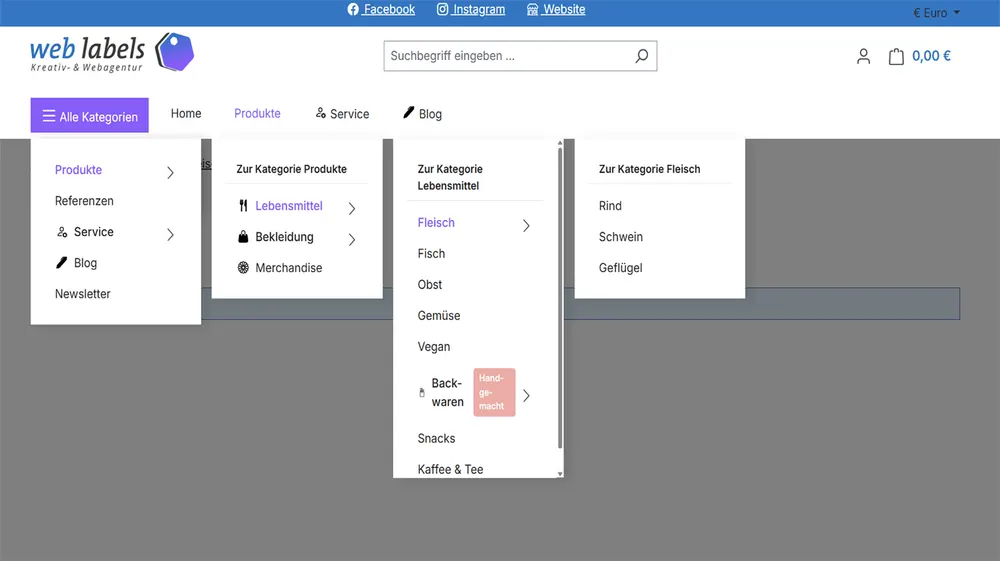
This navigation shows several levels side by side. For each category you decide on the icon, badge, image and how deep the menu goes. On top of that come a sticky header with its own logo and a top bar for your most important benefits, such as shipping or service.

What you can use the plugin for

  • Large ranges

    Customers see parent and child categories at the same time and jump straight to the right place.

  • Highlighting promotions

    Badges such as New or Sale make individual categories stand out in the menu.

What it looks like in the shop
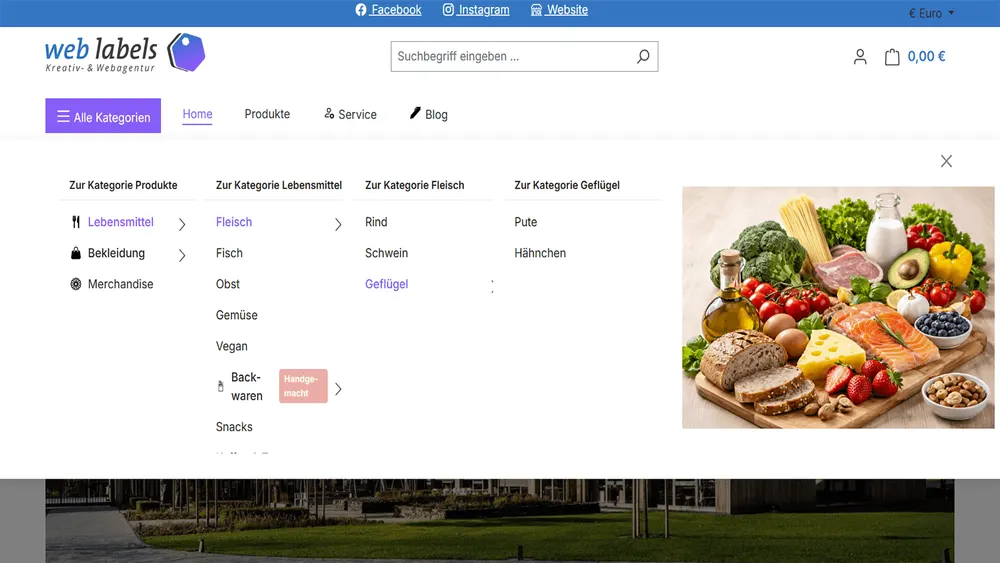
Screenshot Flyout navigation and mega menu for Shopware 6: view 1
Flyout navigation and mega menu: view 1
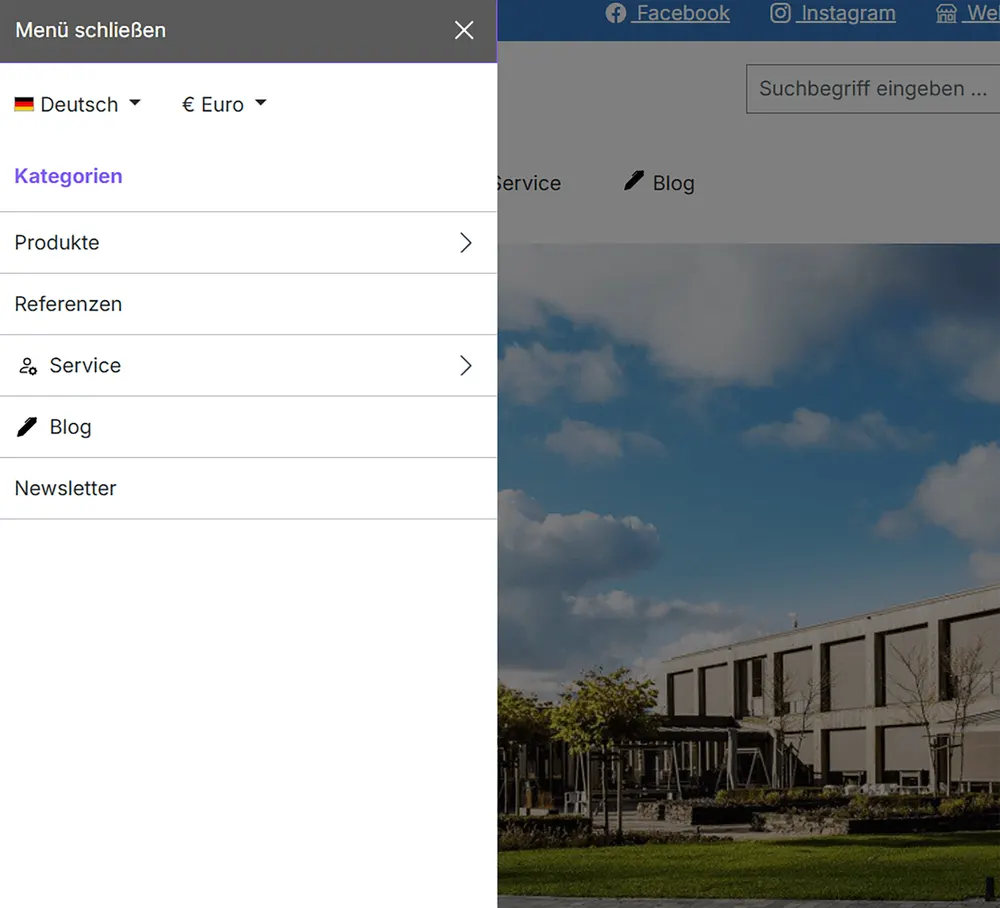
Screenshot Flyout navigation and mega menu for Shopware 6: view 2
Flyout navigation and mega menu: view 2
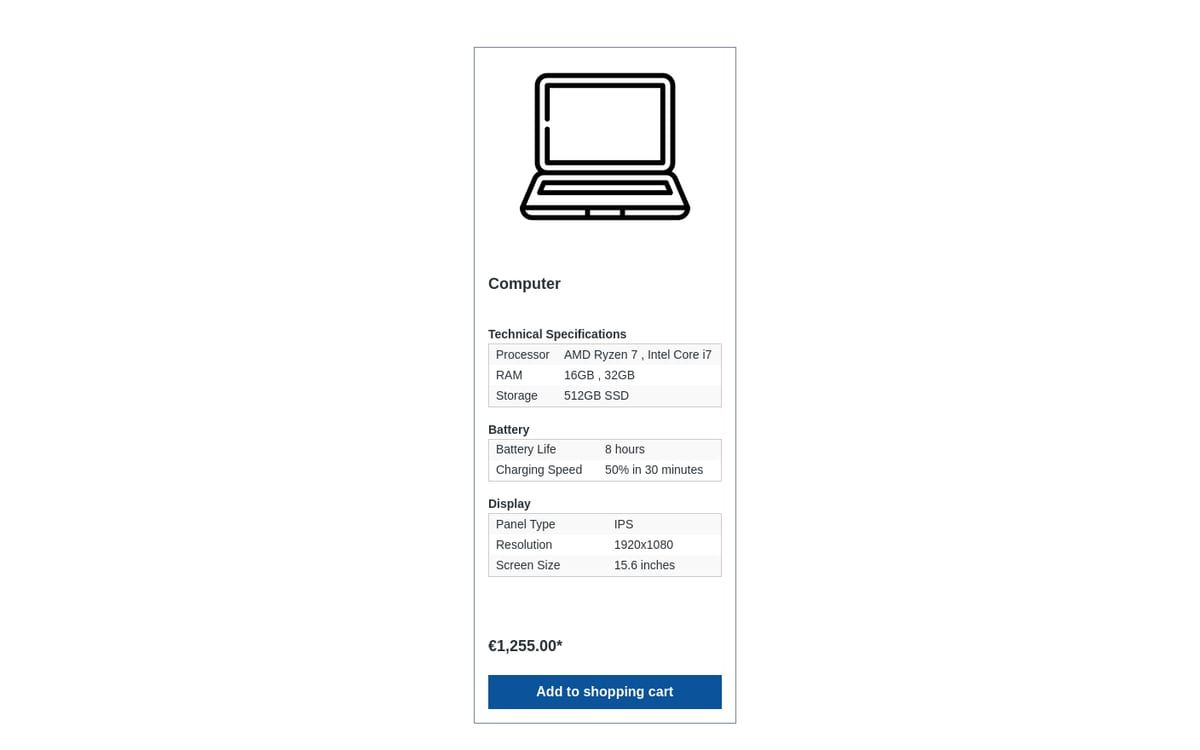
Screenshot Flyout navigation and mega menu for Shopware 6: view 3
Flyout navigation and mega menu: view 3

Set up in a few steps

  1. Install the plugin and choose the display type and trigger.
  2. Add icons, badges or images to your categories.
  3. Adapt the header, top bar and colours to your design.

Frequently asked questions about Flyout navigation and mega menu

Does the menu also work on smartphones?

Yes. On mobile devices the plugin uses an off-canvas navigation, which you can also use on desktop if you wish.

Can I link individual categories without a flyout?

Yes. Each category can be set as a simple link or hidden from the top bar.

Your contacts

Questions about Flyout navigation and mega menu or need an adjustment?

Would you like to know whether the plugin suits your shop, or do you need an extension? Talk to us directly.

Janis Rittmeier and Tim Schröder, Key Account Manager at Web Labels, your contact for Flyout navigation and mega menu

Our team for your questions

  • René Grosche, Managing Director at Web Labels René Grosche Managing Director
  • Marco Kreutzfeldt, Deputy Managing Director · Back office at Web Labels Marco Kreutzfeldt Deputy Managing Director · Back office
  • Tim Schröder, Key Account Manager at Web Labels Tim Schröder Key Account Manager · Consulting and quotes
  • Janis Rittmeier, Key Account Manager at Web Labels Janis Rittmeier Key Account Manager · Consulting and quotes
  • Lennart Albrecht, Head of Development at Web Labels Lennart Albrecht Head of Development
  • Tom Baustian, Web design · Performance marketing · Audio at Web Labels Tom Baustian Web design · Performance marketing · Audio
  • Tajara-Tabea Leonard, Web design · Content · SEO at Web Labels Tajara-Tabea Leonard Web design · Content · SEO
  • Ken Raupach, Web design · Performance marketing at Web Labels Ken Raupach Web design · Performance marketing
  • Muhammed Tay, Web development at Web Labels Muhammed Tay Web development
  • Alexander Folz, Web development at Web Labels Alexander Folz Web development
  • Aaron Griem, Web development at Web Labels Aaron Griem Web development
  • Leon Fischer, Web development at Web Labels Leon Fischer Web development
  • Patrick Heidl, Web development at Web Labels Patrick Heidl Web development
  • Tobias Schäfer, Web development at Web Labels Tobias Schäfer Web development · Complex development
  • Laura Schop, Web development at Web Labels Laura Schop Web development
  • Aleksej Werestschagin Web development
  • Julina Sievert, Apprentice at Web Labels Julina Sievert Apprentice
  • Rosa-Lee Biesterfeldt, Apprentice at Web Labels Rosa-Lee Biesterfeldt Apprentice

Related plugins

  • Shopware 6 plugin Grouped properties by Web Labels: view from the Shopware Store

    Grouped properties

    Bundle product properties into topic groups and show exactly the details that matter in each category in listings, on product pages and in cross-selling.

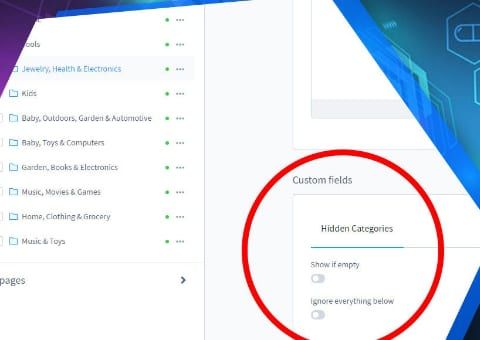
  • Shopware 6 plugin Hide Empty Categories by Web Labels: feature view

    Hide Empty Categories

    Empty categories disappear from the menu automatically but stay active, and therefore in the sitemap and search index.

  • Shopware 6 plugin Hide out-of-stock products by Web Labels: feature view

    Hide out-of-stock products

    Products without stock disappear automatically from listings, search and manufacturer pages but stay active. This way they keep their URL and their Google ranking.

Need an adjustment or an extension of your own?

Many of our plugins only exist because a client asked for them. If your shop needs something that is not listed here, we will develop the right plugin for you.

Up to 80% government funding